

Learn how to draw digital art step by step with this beginner-friendly guide. Explore digital sketching, brushes, layers, coloring, shading, and simple drawing practice.
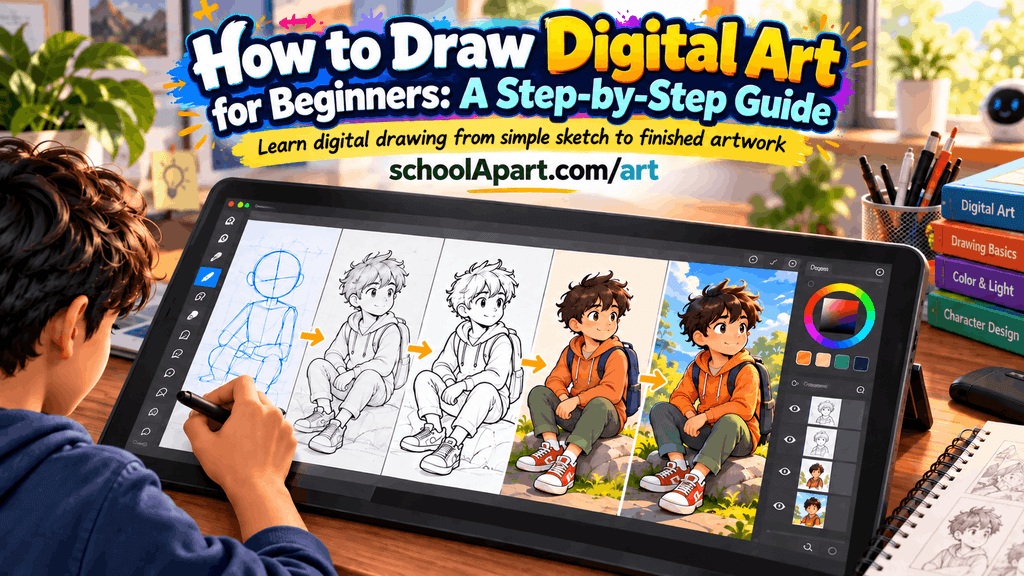
How to Draw Digital Art for Beginners: A Step-by-Step Guide
Digital art can seem complicated when you first look at a finished digital illustration. Layers, brushes, colors, shading, and drawing tablets can make the process appear difficult.
But you do not need advanced skills to start.
You can learn digital drawing by beginning with simple shapes, basic lines, and small practice projects. As you become comfortable with your drawing app and tools, you can gradually learn coloring, shading, texture, and more advanced techniques.
This guide explains how to draw digital art for beginners in a simple step-by-step process.
If you are completely new to digital art, start with Digital Art for Beginners first. It introduces the basic idea of digital art and the tools beginners can use.
What Is Digital Drawing?
Digital drawing is the process of creating artwork using a digital device and drawing software.
Depending on your setup, you might use:
- A computer
- A tablet
- A smartphone
- A drawing tablet
- A stylus
- Digital drawing software
You can create simple sketches, illustrations, cartoons, diagrams, paintings, and many other types of artwork digitally.
The basic drawing principles are still important.
Lines, shapes, proportion, composition, light, shadow, and color all remain useful when you move from traditional drawing to digital drawing.
What Do You Need to Start Digital Drawing?
You do not need an expensive professional setup.
A beginner can start with:
1. A Digital Device
You can use:
- Computer
- Tablet
- Smartphone
Choose whatever device is available and comfortable for you.
2. Drawing Software
You need an application that allows you to draw.
Different applications provide different brushes, layers, selection tools, and other features.
Beginners should focus on learning the basic tools instead of trying every feature immediately.
3. Stylus or Mouse
A stylus can provide more natural control for drawing, especially on a tablet or drawing tablet.
However, you can also practice simple digital art with a mouse or trackpad.
4. Reference Images
Reference images can help you understand:
- Shapes
- Proportion
- Lighting
- Color
- Texture
You can also practice by observing simple real objects around you.
Step 1: Create a New Canvas
Open your drawing application and create a new canvas.
For your first practice drawing, you do not need an extremely large canvas.
Choose a practical size that your device and software can handle comfortably.
Before starting, check:
- Canvas width
- Canvas height
- Orientation
- Background
- Resolution, if relevant to your project
For simple practice, keep the setup uncomplicated.
Step 2: Choose a Simple Brush
Your drawing application may contain dozens or even hundreds of brushes.
Do not try to learn them all at once.
Start with one simple brush.
A basic brush can be used for:
- Sketching
- Outlines
- Simple details
- Practice exercises
Focus on controlling your lines before experimenting with special brushes.
Step 3: Practice Basic Lines
Before drawing a complete picture, spend a few minutes practicing lines.
Try drawing:
- Straight lines
- Curved lines
- Short lines
- Long lines
- Parallel lines
- Wavy lines
- Circles
- Ovals
Try changing the direction and length of your strokes.
This exercise helps you become comfortable with the digital drawing surface.
If you need more traditional drawing practice, see Line Drawing Techniques.
Step 4: Draw Basic Shapes
Next, practice simple shapes.
Start with:
- Circle
- Oval
- Square
- Rectangle
- Triangle
These shapes are important because many complicated objects can be simplified into basic forms.
For example:
Circle → ball
Rectangle → book
Cylinder → cup
Oval + curved lines → simple fruit
You can learn more about this approach in How to Draw Using Basic Shapes.
Step 5: Create a Simple Sketch
Now choose one simple object.
Good beginner subjects include:
- Apple
- Cup
- Book
- Pencil
- Leaf
- Simple plant
- Ball
Start with a rough sketch.
Do not worry about perfect lines.
The purpose of this stage is to establish:
- Size
- Shape
- Position
- Proportion
A rough digital sketch is much easier to modify than a detailed drawing.
Step 6: Use Layers
Layers are one of the most useful features in digital art.
Instead of drawing everything on one layer, you can separate different parts of your artwork.
A simple beginner setup might be:
Layer 1 → Sketch
Layer 2 → Clean outline
Layer 3 → Base color
Layer 4 → Shading
You can create additional layers when necessary.
The exact layer workflow depends on your software.
Why Are Layers Useful?
Layers allow you to:
- Edit individual elements
- Remove mistakes more easily
- Change colors
- Add shading
- Keep the artwork organized
You do not need dozens of layers.
Start with a few clearly named layers.
Step 7: Create a Cleaner Outline
Once your rough sketch is ready, create a cleaner outline on a separate layer.
Follow the main forms of the sketch.
Try to keep your lines:
- Controlled
- Clear
- Consistent
- Easy to understand
Do not worry if your first few attempts look imperfect.
Line control improves with practice.
You can also vary line thickness when your software or stylus supports pressure sensitivity.
Step 8: Add Base Colors
Once your outline is ready, add the main colors.
This is sometimes called a base color or flat color stage.
For a simple apple, for example, you might use:
- Red for the apple
- Green for the leaf
- Brown for the stem
Do not add detailed shading yet.
First make sure the main color areas are correct.
Step 9: Experiment With Color
Digital art makes it easy to experiment with colors.
You can try:
- Different color combinations
- Lighter colors
- Darker colors
- Warm colors
- Cool colors
Understanding traditional color concepts is still useful in digital art.
You can practice with Color Mixing for Beginners.
You can also learn more about color relationships through Colour Theory Explained.
Step 10: Add Light and Shadow
Once the base colors are ready, you can add simple shading.
First decide where the light is coming from.
For example:
Light → upper left
Then the opposite side of the object can contain darker values.
This helps create the impression of form.
Start with simple shading rather than trying to create highly realistic effects.
For additional practice, see Light and Shadow in Drawing.
Step 11: Add Digital Shading
Digital drawing applications often provide different ways to shade.
You can use:
- A soft brush
- A hard-edged brush
- Layer opacity
- Multiple shading layers
- Different colors
Beginners should experiment with one method at a time.
Do not cover the entire artwork with heavy shading.
Use shading where it helps explain the shape.
Step 12: Add Simple Texture
After the main colors and shading are complete, you can add texture.
For example:
Apple
Add subtle marks to suggest the surface.
Wood
Use directional lines.
Fabric
Use repeated patterns or soft variations.
Grass
Use short strokes.
Texture should support the subject rather than distract from it.
Step 13: Add Small Details
Now you can add details that make the illustration more interesting.
Examples include:
- Small highlights
- Surface marks
- Facial features
- Small patterns
- Background elements
Do not add details simply because you can.
Ask:
Does this detail improve the drawing?
If not, you may not need it.
Step 14: Check the Proportion
Before finishing your drawing, compare the different parts.
Check:
- Size
- Shape
- Position
- Spacing
If one part looks too large or too small, digital tools may allow you to adjust it without redrawing the entire artwork.
You can also practice proportion through Proportion in Drawing.
Step 15: Clean Up the Drawing
Now review your artwork.
Look for:
- Unwanted marks
- Rough lines
- Accidental color
- Uneven edges
- Unnecessary details
Use the eraser or other editing tools to clean up the drawing.
Do not over-edit.
Some natural variation in your lines can make the artwork feel more personal.
Step 16: Add a Simple Background
A background can help place your subject in a visual environment.
For your first projects, keep the background simple.
You could use:
- A solid color
- A simple gradient
- A few basic shapes
- A simple floor or surface
A complicated background can distract from the main subject.
Step 17: Review the Complete Illustration
Zoom out and look at the entire artwork.
Ask yourself:
- Is the main subject clear?
- Are the proportions reasonable?
- Do the colors work together?
- Is the lighting consistent?
- Is the background distracting?
- Are there unnecessary details?
Looking at the complete image instead of only zoomed-in sections can help you identify problems.
Step 18: Save Your Work
Save your artwork in the native project format supported by your software if you want to keep editable layers.
You may also export a copy in a common image format when you want to share the finished artwork.
Keep the original editable file when possible.
This allows you to return to the project later.
An Easy First Digital Drawing Project
If you are completely new, try drawing a simple apple.
Stage 1: Sketch
Draw an oval or simple apple shape.
Stage 2: Outline
Create a clean outline on a separate layer.
Stage 3: Base Color
Fill the apple with red.
Stage 4: Add the Leaf
Use a simple green shape.
Stage 5: Add the Stem
Add a small brown shape.
Stage 6: Choose the Light Direction
Imagine the light coming from the upper left.
Stage 7: Add Shadow
Add a darker area on the opposite side.
Stage 8: Add Highlight
Add a small lighter area where the light hits.
Stage 9: Review
Clean up the edges and unnecessary marks.
This small project teaches several important digital drawing skills without becoming overwhelming.
Simple Digital Drawing Exercises
Exercise 1: Line Control
Fill a page with different types of lines.
Practice controlling your stroke direction and length.
Exercise 2: Shape Practice
Draw circles, squares, rectangles, triangles, and ovals.
Then combine them into simple objects.
Exercise 3: Object Drawing
Choose a simple object near you and draw it digitally.
Exercise 4: Light and Shadow
Draw a simple sphere or ball and add one light source.
Exercise 5: Three-Color Illustration
Create a small illustration using only three main colors.
Exercise 6: Layer Practice
Create one drawing using separate layers for:
- Sketch
- Outline
- Color
- Shadow
Exercise 7: Reference Drawing
Choose a simple reference object and try to recreate its major shapes without focusing on every tiny detail.
Common Digital Drawing Mistakes Beginners Make
1. Trying Too Many Brushes
More brushes do not automatically improve your artwork.
Start with one or two simple brushes.
2. Using Too Many Layers
Layers are useful, but too many can make a simple project confusing.
Keep your layer structure organized.
3. Zooming in Too Much
Working at extreme zoom levels can make you focus on tiny details that are not important in the final image.
Regularly zoom out.
4. Skipping the Sketch
A rough sketch can help you solve proportion and composition problems before the final drawing.
5. Using Too Many Colors
A limited palette can make your first digital illustrations easier to control.
6. Overusing Effects
Glow, blur, filters, and other effects can be interesting, but they cannot replace good drawing fundamentals.
7. Making Everything Perfect
Beginners often spend too much time correcting small imperfections.
Focus on learning rather than making every first drawing perfect.
Traditional Drawing Skills Still Matter
Moving to digital art does not mean you should stop learning traditional drawing fundamentals.
Digital drawing still benefits from:
- Line control
- Basic shapes
- Proportion
- Perspective
- Light and shadow
- Composition
- Observation
If you practice these skills on paper, many of them will also help you when drawing digitally.
This is why a strong foundation in traditional drawing can support digital art development.
How Long Does It Take to Learn Digital Drawing?
There is no fixed amount of time required.
Your progress depends on:
- Practice frequency
- Previous drawing experience
- The tools you use
- The type of art you want to create
- How deliberately you practice
Instead of trying to become advanced quickly, set small goals.
For example:
Week 1: Lines and shapes
Week 2: Simple objects
Week 3: Layers and clean outlines
Week 4: Base colors and simple shading
The exact timeline is flexible.
The important part is consistent practice.
A Simple Digital Art Practice Routine
You can practice for 20–30 minutes.
5 minutes
Line and stroke exercises.
5 minutes
Basic shapes.
10 minutes
Draw one simple object.
5 minutes
Add color and simple shading.
Final few minutes
Review your drawing and identify one thing to improve next time.
This keeps practice manageable.
Digital Drawing vs Traditional Drawing
Both methods teach valuable skills.
| Digital Drawing | Traditional Drawing |
|---|---|
| Uses digital devices | Uses physical materials |
| Easy to undo mistakes | Mistakes may be harder to remove |
| Uses layers | Usually works directly on the page |
| Easy to experiment with colors | Uses physical color materials |
| Can use many digital brushes | Uses physical drawing tools |
| Easy to save multiple versions | Creates a physical artwork |
Neither method removes the need for practice.
The most important thing is learning how to observe, construct, draw, and communicate visual ideas.
What Should Beginners Draw Digitally?
Start with simple subjects such as:
- Fruits
- Cups
- Books
- Plants
- Leaves
- School objects
- Simple landscapes
- Basic cartoon characters
- Simple animals
- Everyday objects
Avoid starting with extremely complex scenes.
As your confidence improves, increase the difficulty.
Learning how to draw digital art does not require you to master complicated software from the beginning.
Start with a simple brush, practice lines and shapes, create a rough sketch, use layers, add base colors, and gradually introduce shading and details.
Most importantly, remember that digital tools do not replace drawing fundamentals.
Your ability to observe shapes, understand proportion, use light and shadow, and organize a composition will continue to matter.
Start with small drawings, practice regularly, and allow yourself to make mistakes.
With consistent practice, digital drawing can become a natural extension of the art skills you are already developing.
Quick Digital Drawing Workflow
Choose a simple subject
↓
Create a new canvas
↓
Practice basic shapes
↓
Make a rough sketch
↓
Create a clean outline
↓
Add base colors
↓
Add light and shadow
↓
Add texture and details
↓
Clean up the artwork
↓
Review and export
FAQ
1. How do I start drawing digital art as a beginner?
Start with a simple drawing application, one basic brush, and simple exercises such as lines, shapes, and everyday objects.
2. What do I need to draw digital art?
You need a digital device, drawing software, and optionally a stylus or drawing tablet.
3. Can I learn digital art without a drawing tablet?
Yes. You can begin with a mouse, trackpad, smartphone, or tablet, although a stylus can provide more natural drawing control.
4. What should I draw first in digital art?
Simple objects such as fruits, cups, books, leaves, and school objects are good starting subjects.
5. Are layers important in digital drawing?
Layers are useful because they allow you to separate sketches, outlines, colors, shading, and other elements.
6. What brush should a beginner use for digital art?
A simple basic brush is usually enough for learning lines, shapes, sketching, and basic coloring.
7. How can I improve digital drawing skills?
Practice lines, shapes, observation, proportion, simple objects, coloring, and light and shadow regularly.
8. Can traditional drawing skills help with digital art?
Yes. Skills such as proportion, perspective, observation, composition, and shading are useful in both traditional and digital art.
9. How do I add shading to digital art?
First decide where the light comes from, then add darker values to areas that receive less light.
10. How long does it take to learn digital drawing?
There is no fixed timeline. Regular practice and gradual skill development are more important than trying to learn everything quickly.
11. Can I make digital art on a phone?
Yes. A smartphone with a suitable drawing application can be used for basic digital drawing practice.
12. Should I sketch before making digital art?
A rough sketch can help you plan proportions, shapes, and composition before creating the final artwork.
13. How many colors should a beginner use?
Starting with a limited color palette can make your first digital illustrations easier to control.
14. Is digital drawing easier than traditional drawing?
Digital tools can make editing and experimentation easier, but you still need to practice fundamental drawing skills.
15. What should I learn after basic digital drawing?
After learning basic drawing, you can gradually explore digital illustration, character drawing, color, shading, texture, and more advanced composition.







Leave a Reply